Building a Chrome extension used to mean writing raw HTML, vanilla JavaScript, and praying that the Manifest V3 documentation was accurate. Today, you can bring the full power of React, TypeScript, and Tailwind CSS into the browser and ship a polished extension without giving up the developer experience you are used to.
The challenge is the build system. Chrome extensions have very specific requirements for their output files and a setup that works beautifully for a standard React app will fall apart the moment you add manifest.json to the mix. Here is how to do it right.
1. Why the Standard Setup Fails
Chrome extensions require a specific set of output files. Every extension needs a manifest.json, a popup HTML file, and often a content script and a service worker. These files have strict naming conventions and must be organized in a particular way before Chrome will load them.
Create React App outputs a single-page application with hashed filenames like main.a3f9c2.js. Chrome extensions need predictable filenames. The hash breaks the manifest references immediately. Ejecting CRA to fix this is a nightmare of configuration.
Vite solves this cleanly. Using Vite with the CRXJS plugin cuts build times from 15 seconds down to under 200ms and handles all the Chrome-specific output requirements automatically. It also gives you genuine hot module replacement directly inside the Chrome popup, which makes development feel like building a regular web app.
2. The Architecture of a Modern Extension
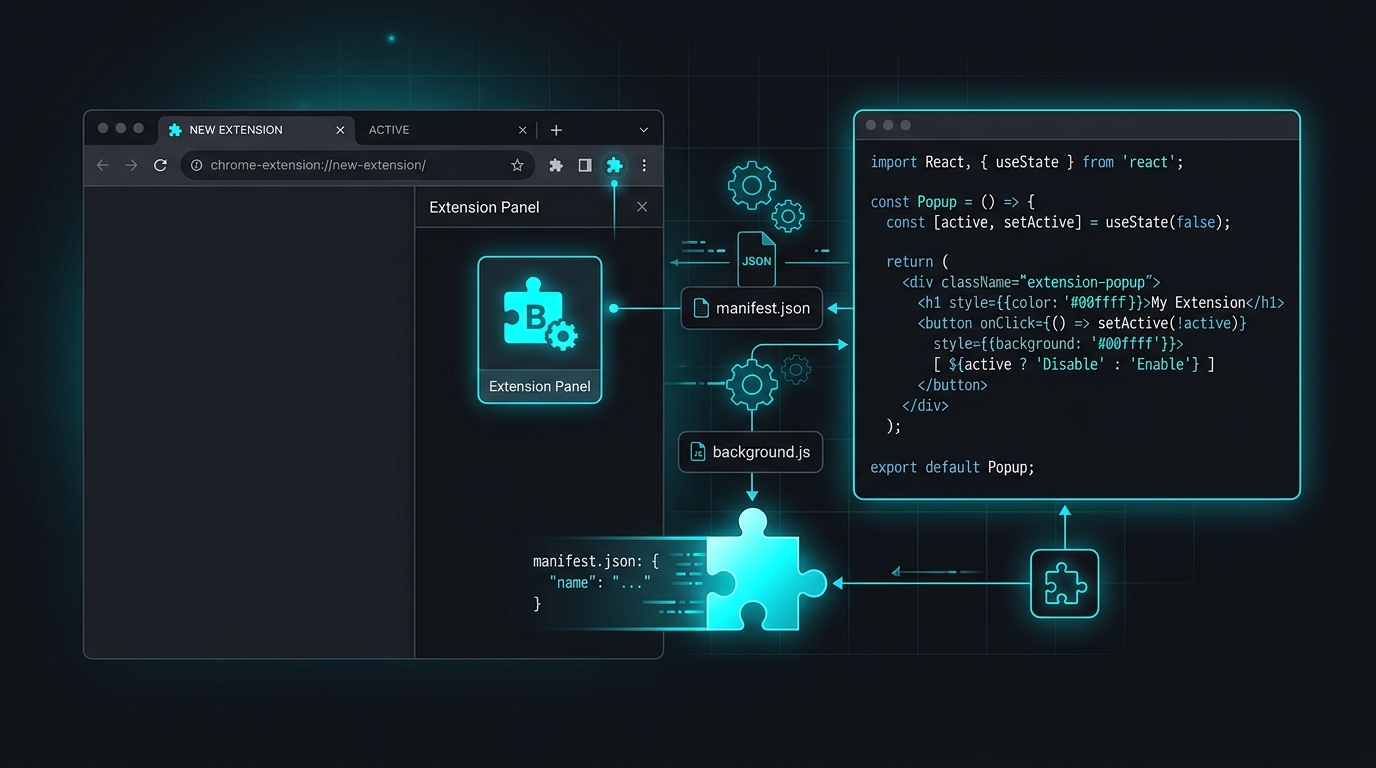
Before writing a single line of code, you need to understand the 3 separate contexts your code will run in:
- The Popup: This is your React app. It renders inside the small window that appears when a user clicks your extension icon. It has full access to the Chrome extension APIs and runs in its own isolated environment.
- The Content Script: This JavaScript file is injected directly into the web page the user is viewing. It can read and modify the page DOM. However, it runs in an isolated world and cannot directly call most Chrome APIs. It communicates with the popup and service worker via message passing.
- The Service Worker: This replaces the old background page in Manifest V3. It runs in the background, handles browser events like tab changes, manages API calls, and holds the extension state. It does not have access to the DOM at all.
"Keep your React components in the popup or an injected sidebar. Use the content script only for DOM manipulation. Use the service worker strictly for state management, API calls, and responding to Chrome events."
3. State Management Across Contexts
This is the part that catches most developers off guard. Your popup, content script, and service worker are three completely separate JavaScript environments. They do not share memory. If the user closes the popup and reopens it, all React state is gone.
The solution is chrome.storage.local. Think of it as a small, persistent key-value store built into the browser that all three contexts can read from and write to. Any state that needs to survive between popup opens, like user preferences or cached data, must live in storage rather than in a React state variable.
"Treat chrome.storage like your extension's database. If the data needs to outlive a single popup session, it belongs in storage, not in React useState."
Message passing with chrome.runtime.sendMessage and chrome.runtime.onMessage is how the three contexts talk to each other. The popup sends a message to the service worker to trigger an API call. The content script sends extracted page data back to the popup. Once you model it as a simple event system, it becomes straightforward.
4. Getting Past the Review Process
Building the extension is only half the work. The Chrome Web Store review process is stricter than most developers expect. Extensions are rejected for requesting unnecessary permissions, including libraries that Chrome's Content Security Policy blocks, or having a popup that does not clearly explain what the extension does.
The single biggest tip: request the minimum permissions required and nothing more. If your extension only reads the current tab URL, request activeTab, not tabs. Reviewers look directly at your permissions list, and over-requesting is a common reason for rejection.
The Payoff
A well-built Chrome extension is one of the highest-leverage distribution channels available to developers. It puts your tool directly into the browser of your users, requires no download and no account creation, and runs every time they open the browser. The development investment is relatively small compared to building a full web app, and the distribution surface is enormous.